How do I show my Klaviyo popup only to real visitors, and send an event when it opens?
The short answer
In Klaviyo, set your popup to show only on a custom trigger. In TagCops choose Create Event, then Select manually, then "Should see a popup". Paste the Klaviyo form ID, pick when it should open, and click Create event. DataCops opens the form only for visitors it confirms as real, so bots never see it, and you can send an event to your Meta pixel at the same moment.
Watch the video
Before you start
- A Klaviyo popup form that is Live
- The DataCops script on your site
- Klaviyo's own script on your site (it is there if you already use Klaviyo popups)
- 1
In Klaviyo, open your popup form
In Klaviyo open Sign-up forms and click your popup. Check that it says Live.
Your form ID is in the address of the form page. In our example the address is below and the form ID is TcYGxT. Copy yours.
klaviyo.com/forms/TcYGxT/reports/overview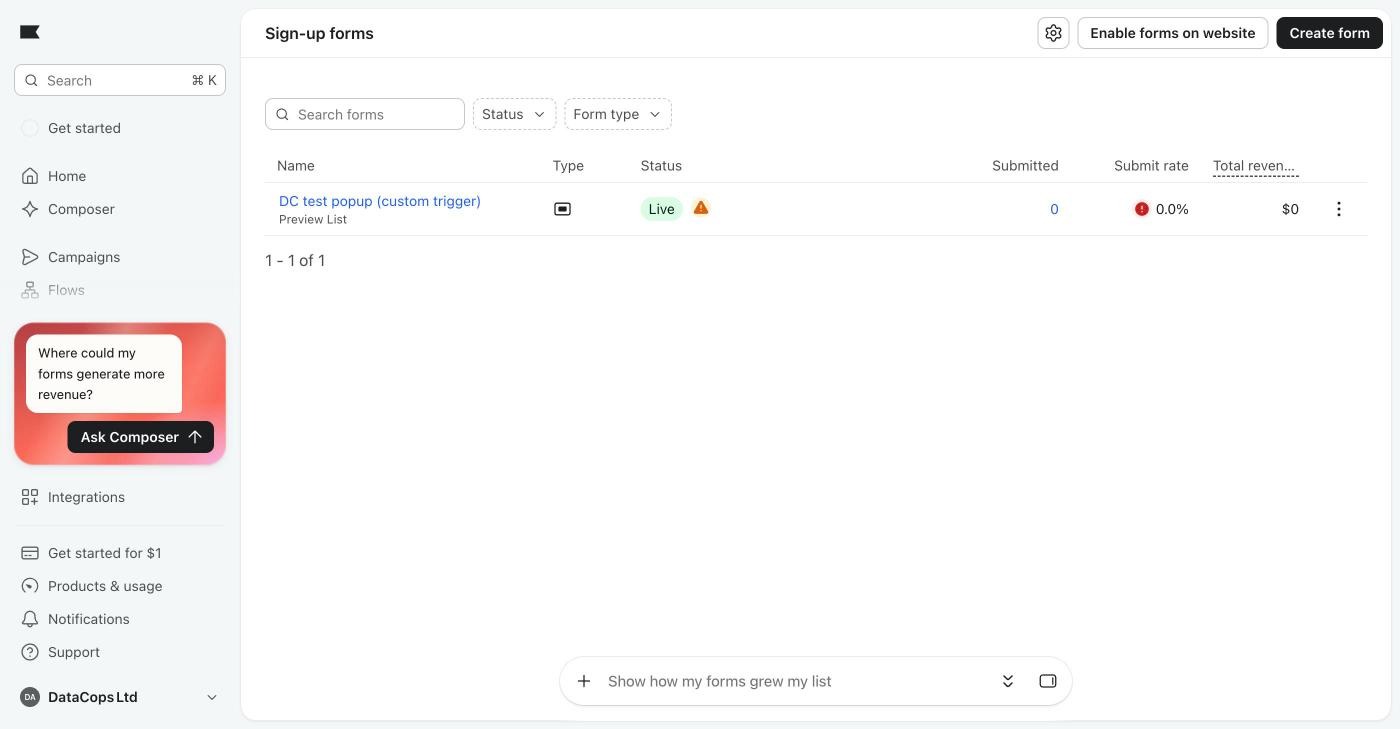
- 1Click your popup form.
- 2It must say Live.
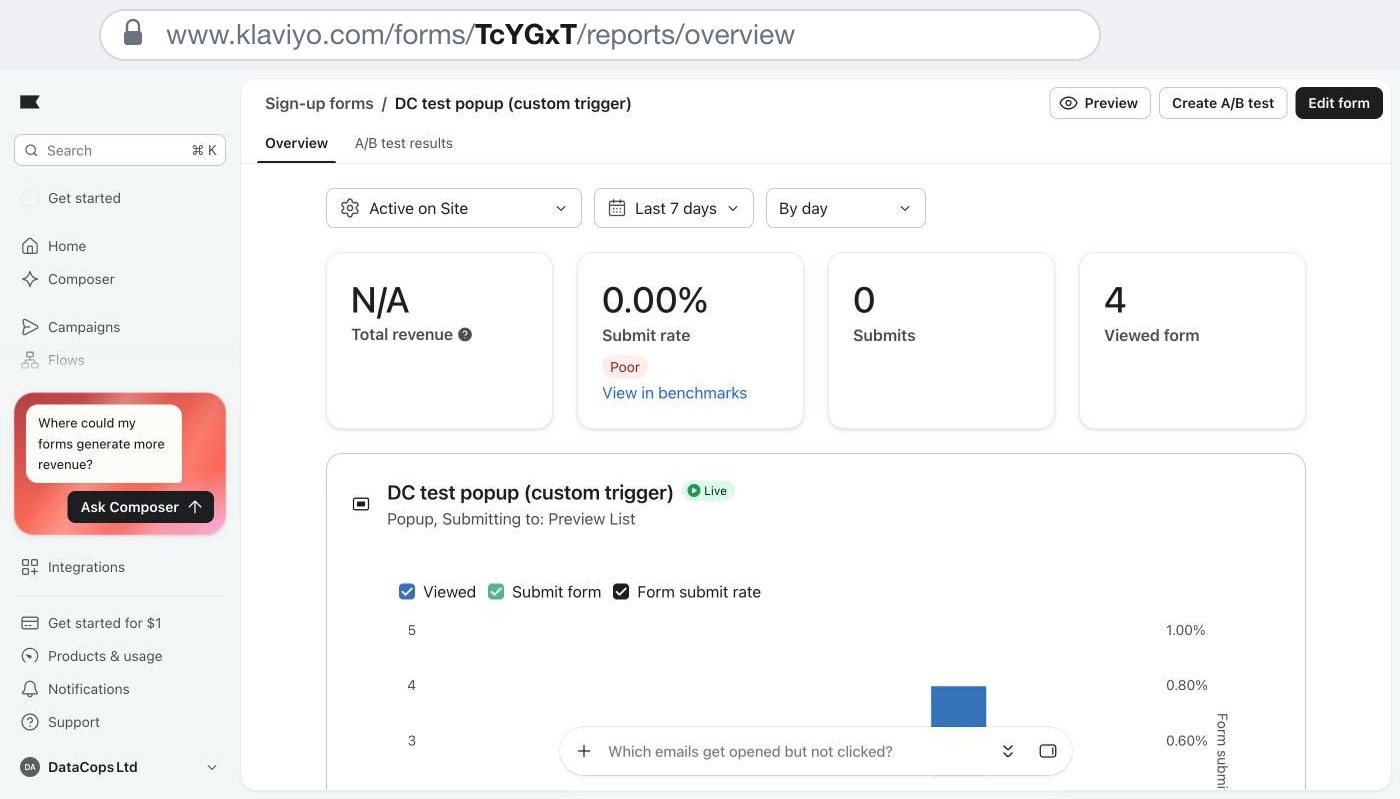
- 1Copy the form ID from the address.
- 2
Set it to open only on a custom trigger
Click Edit form. In the toolbar on the left open Targeting & behavior, then the Display tab.
Under Timing, set Show form to "Only on a custom trigger". Klaviyo will stop showing the popup on its own. Publish the form the way Klaviyo asks you to.
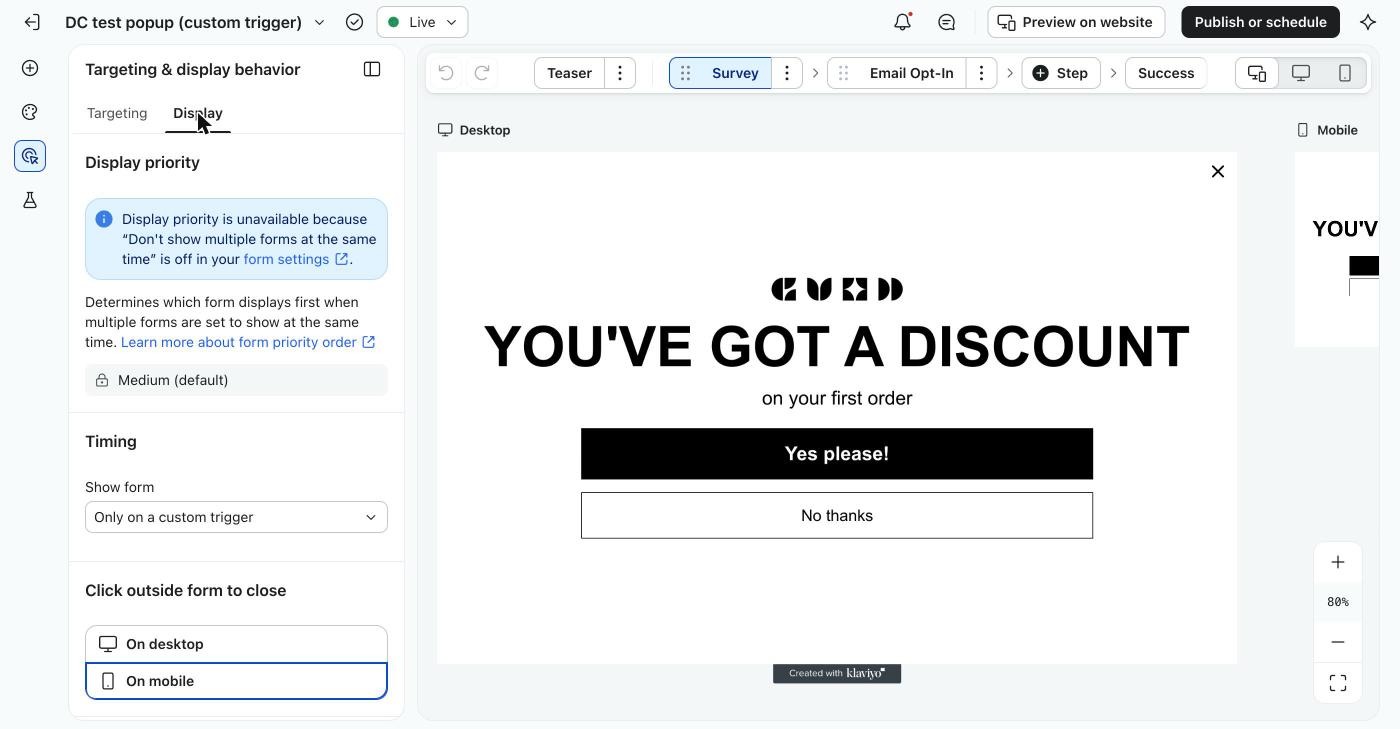
- 1Open the Display tab.
- 2Show form: Only on a custom trigger.
On the Targeting tab Klaviyo then says targeting is unavailable because the form shows on a custom trigger only. That is correct. Good to know. This is what keeps Klaviyo from showing the popup to bots on its own. From now on only DataCops opens it.
- 3
In DataCops, open TagCops, click Create Event, then Select manually
In the DataCops app open TagCops and click Create Event.
Choose Select manually. It says: pick what a visitor does, scroll, stay, visit a page. No code.
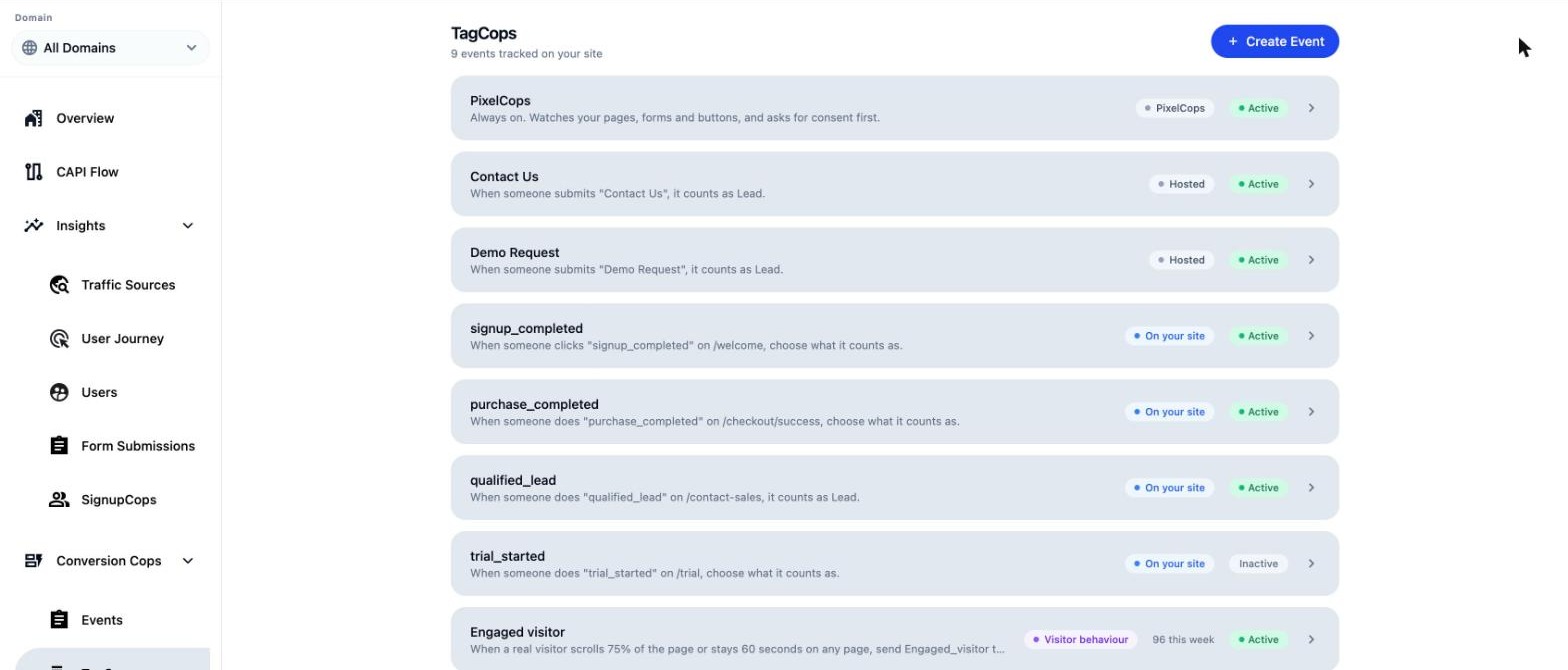
- 1Click Create Event.
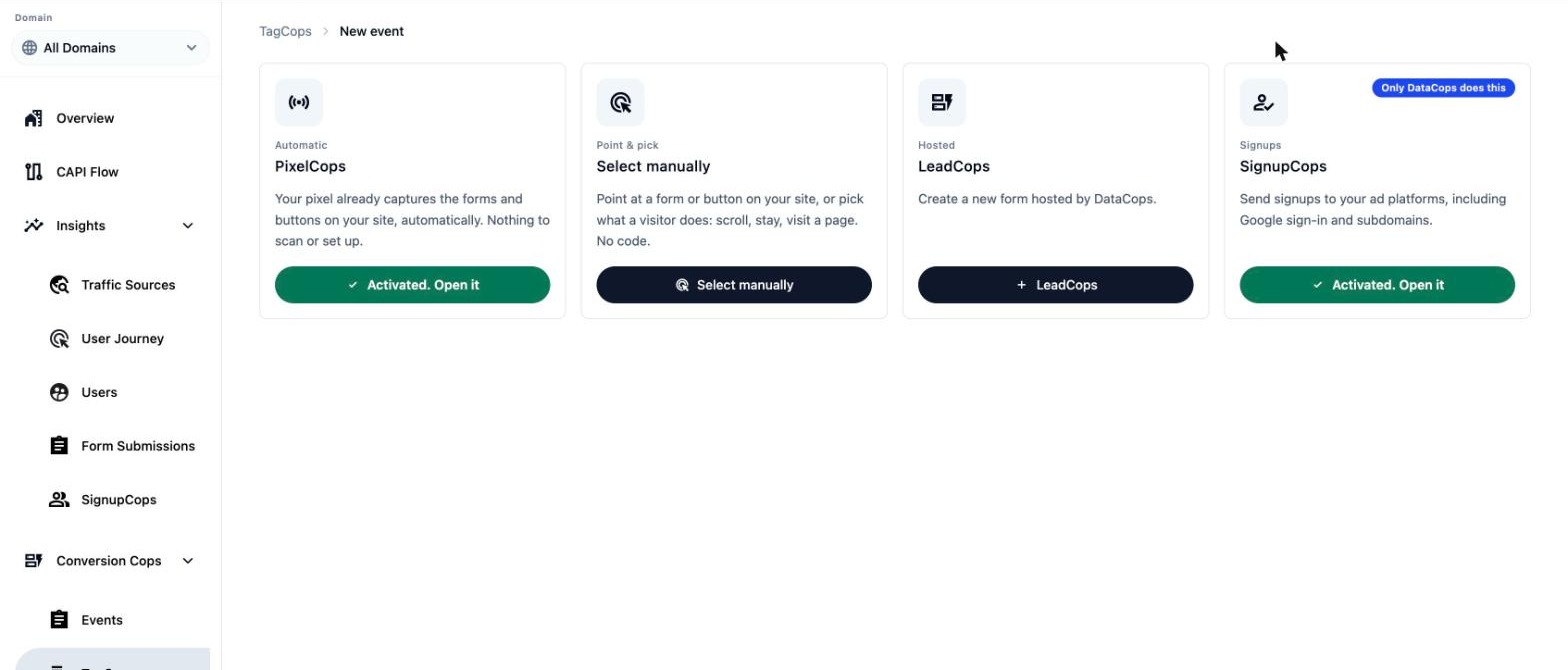
- 1Choose Select manually.
- 4
Pick "Should see a popup", then Next
On "What do you want to track?" look at the last row, "A visitor does something, no clicking needed". Pick "Should see a popup". It says: Open one of your Klaviyo forms, only for real visitors.
Click Next.
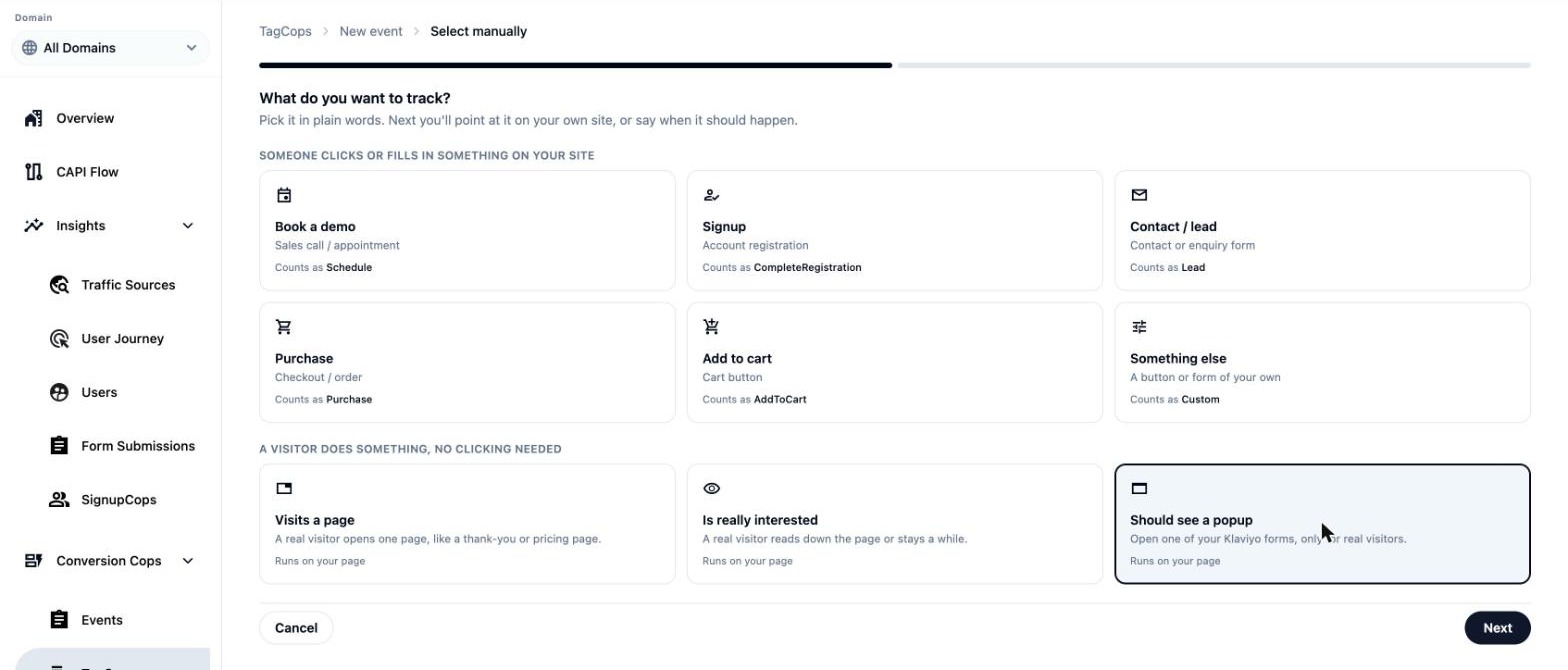
- 1Pick "Should see a popup".
- 2Click Next.
- 5
Say when the popup should open
Under When, tick one or two. "A real visitor arrives" opens it as soon as DataCops knows the visit is real. "A real visitor scrolls down" lets you pick the percent of the page. "A real visitor stays on the page" lets you pick the seconds.
The first one reached opens the popup, once per visit. Bots, VPN and data-center visits never count, and that is always on. Under Only if, choose Every page or Only some pages.
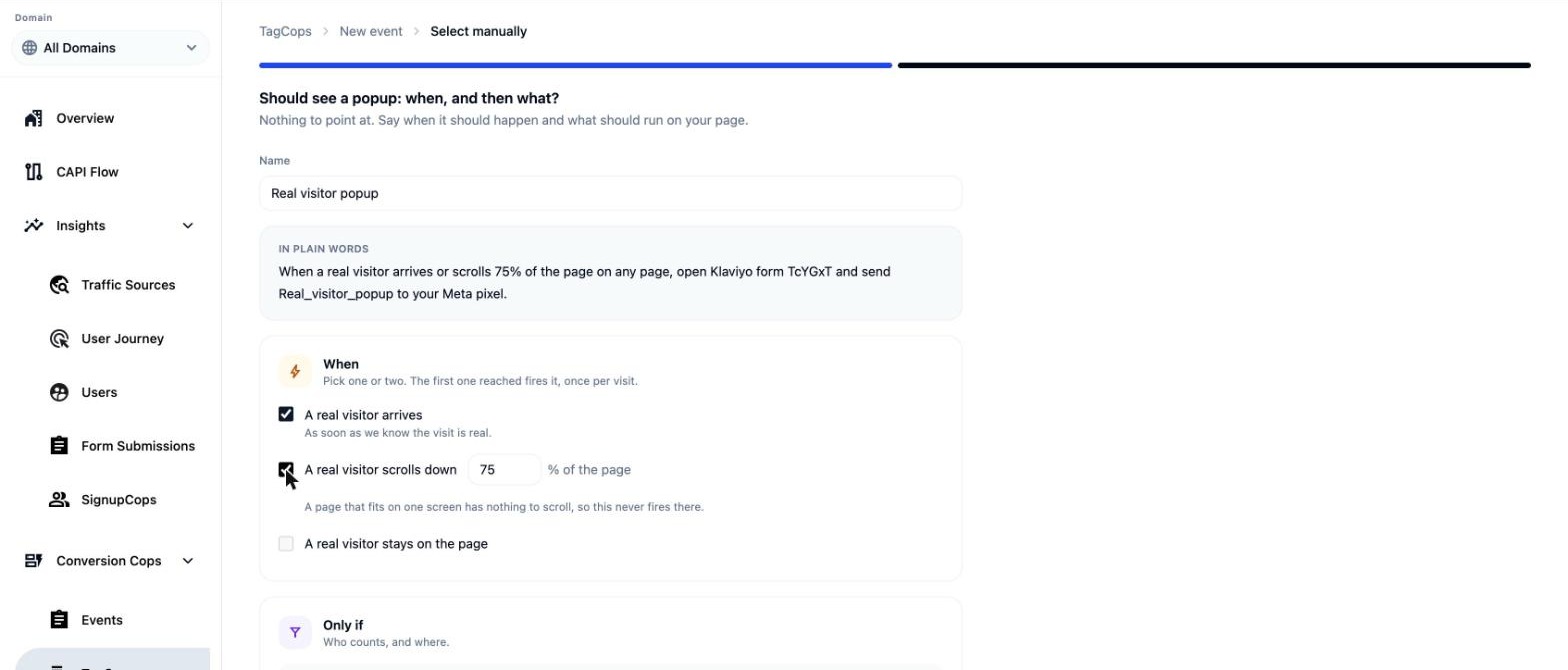
- 1Tick when it should open. The first one reached opens it, once per visit.
- 2This sentence says in plain words what you have built.
- 6
Turn on "A Klaviyo form" and paste the form ID
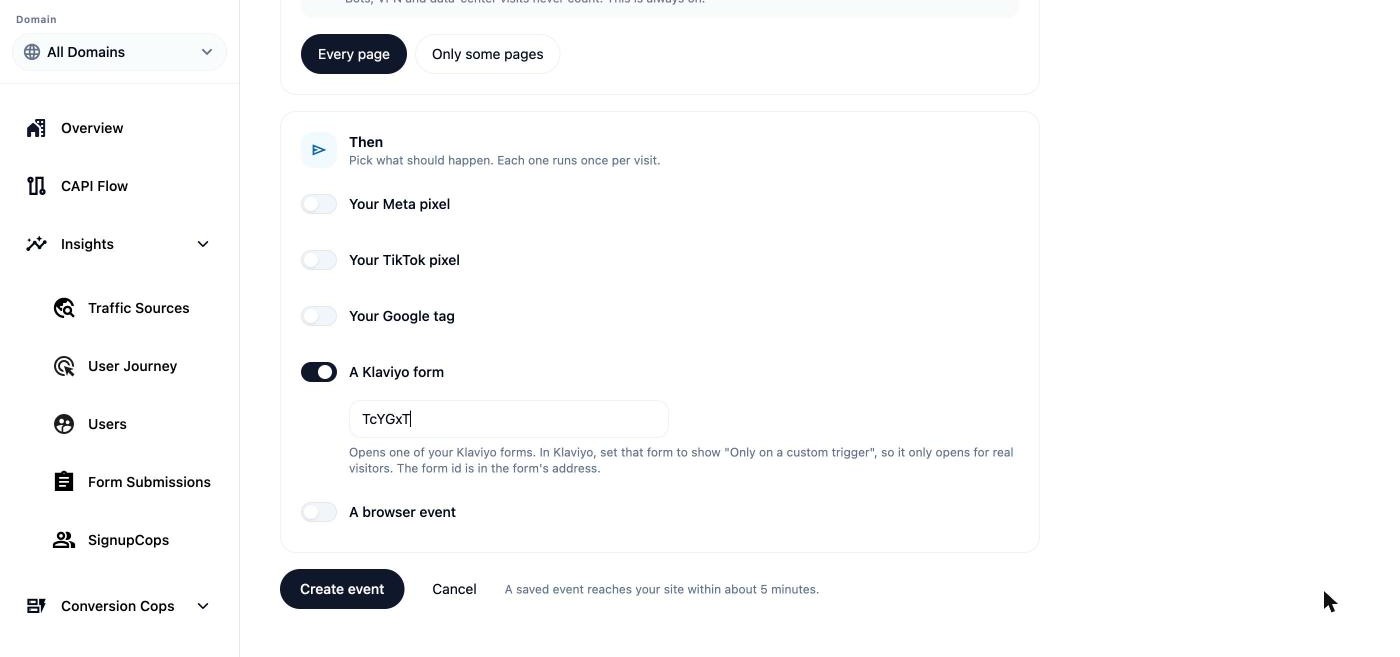
Under Then, turn on "A Klaviyo form" and paste the form ID from step 1. DataCops checks that it is 4 to 12 letters and numbers.
To send an event at the same moment, also turn on "Your Meta pixel". The event name is filled in for you. It is sent to the Meta pixel already on your site, and where the law needs it, it waits for the visitor's marketing consent. You can also pick your TikTok pixel or your Google tag.
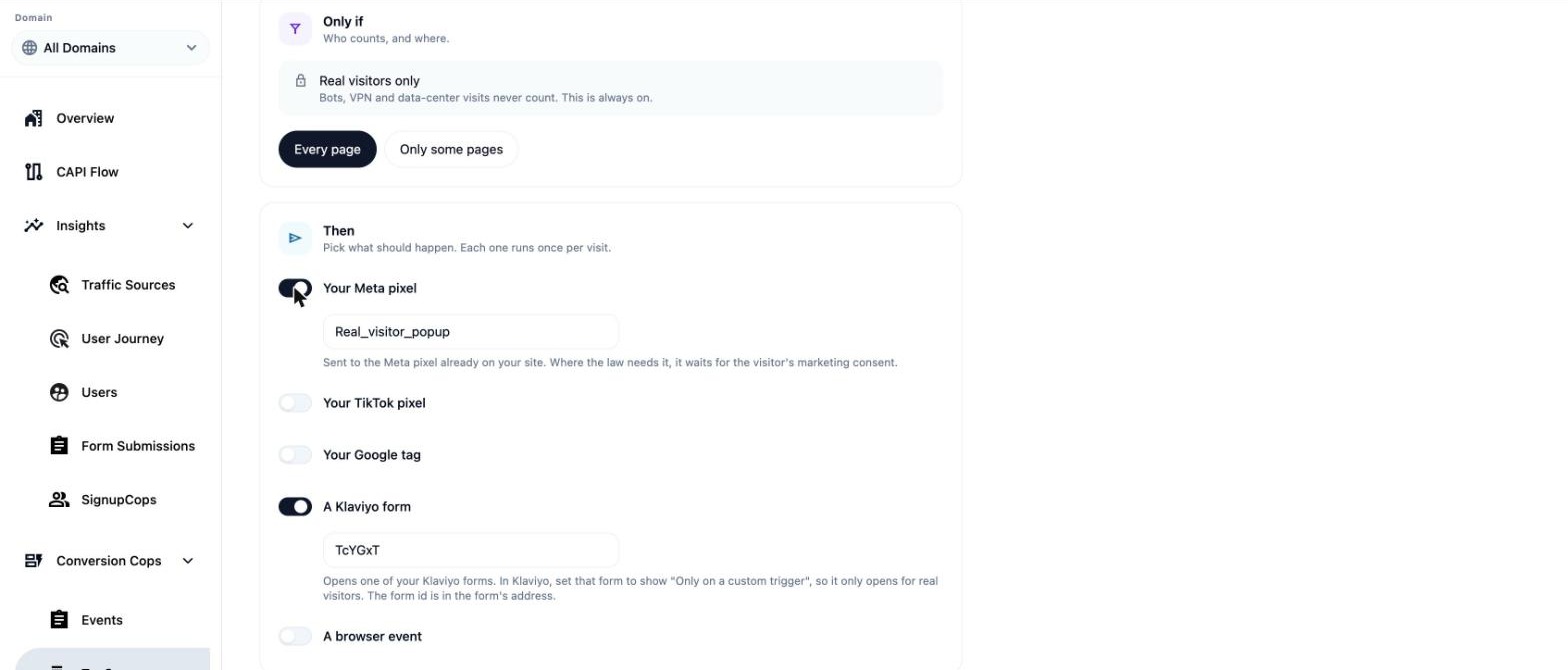
- 1Turn on A Klaviyo form and paste your form ID.
- 2Optional: send an event to your Meta pixel at the same time.
- 7
Click Create event, then check it
Click Create event. A saved event reaches your site within about 5 minutes.
Then open your site in a normal browser window and wait for the moment you chose. The popup opens. Open the event in TagCops: "Is it working?" says Working and counts how many times it fired.
- 1Click Create event.
- 2It reaches your site within about 5 minutes.
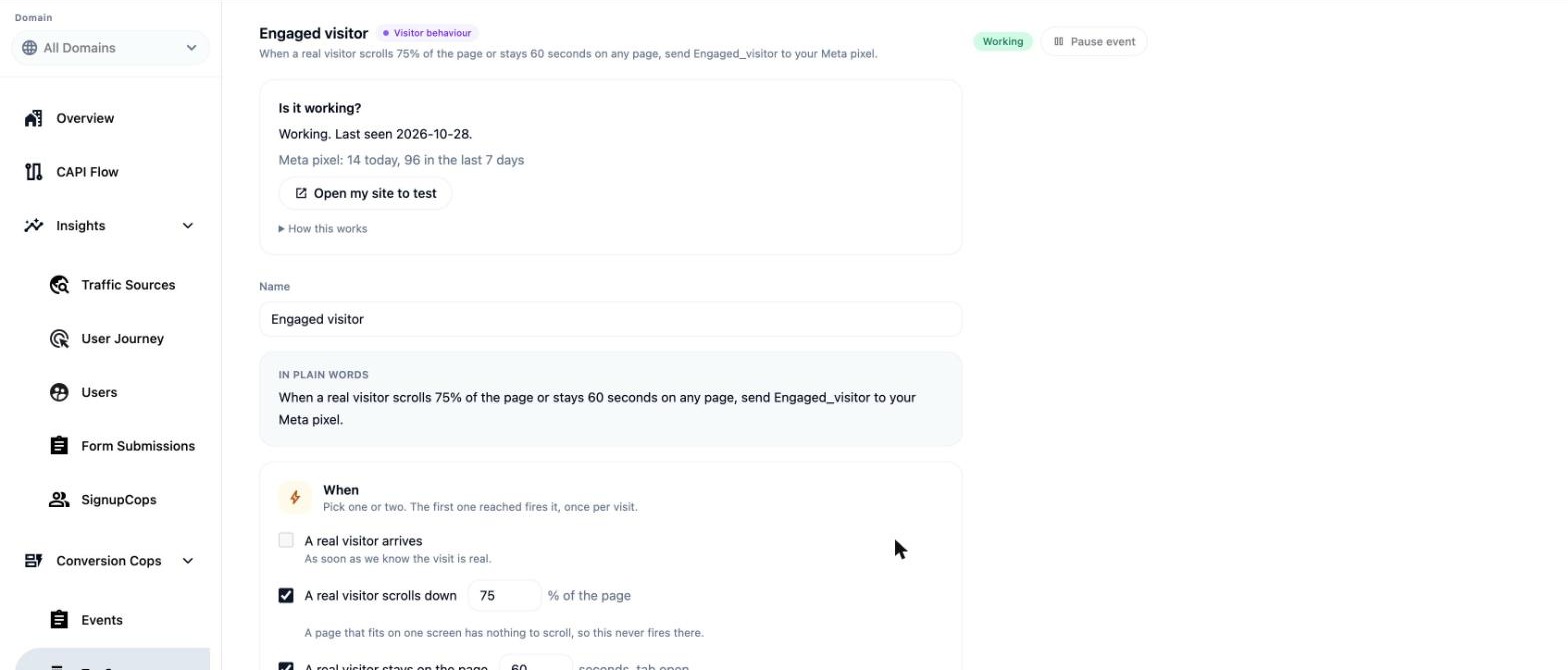
- 1"Is it working?" tells you what happened and how many times.
This is the "Is it working?" box on an existing event, with demo numbers. Your popup event has the same box.
If it does not work
| What you see | Why | What to do |
|---|---|---|
| The popup does not open | Klaviyo's script is not on the page, or the form is not Live or not set to open only on a custom trigger. | TagCops shows "Klaviyo's script was not found on your page" when it is missing. Add Klaviyo's script as you normally do, and check the form is Live (step 1) and set to Only on a custom trigger (step 2). |
| I just saved the event and nothing happens | A saved event reaches your site within about 5 minutes. | Wait 5 minutes, then reload your site in a normal browser window. |
| The popup opens but the event count stays at 0 | The moment you chose was not reached (for example you did not scroll far enough, or the page has nothing to scroll), the page rule did not match, or the event is paused. | Open the event page in TagCops and check When and Only if, and that the event is not paused. A page that fits on one screen has nothing to scroll, so scrolling never fires there. |
| I tested with a script or a crawler and nothing opened | By design. Only visitors DataCops confirms as real see the popup. Bots, VPN and data-center visits never count. | Test in a normal browser window, on your own site. |
| The event shows in my browser tools but not in Meta server events | These events are sent from the browser only for now. | Look for it in the Meta pixel (browser events). Server delivery of these events is not available yet. |
Questions people ask
Does the popup open for bots?
No. DataCops opens your Klaviyo form only for a visitor it confirms as real. Bots, VPN and data-center visits never count. In our own test a bot stayed completely silent and the popup never opened for it.
Do I need Google Tag Manager for this?
No. You set the popup in Klaviyo and the rule in TagCops. There is no code to paste and no tag container to manage.
Can the popup open after the visitor scrolls or stays a while?
Yes. Tick "A real visitor scrolls down" and pick the percent, or "A real visitor stays on the page" and pick the seconds. Tick one or two, and the first one reached opens the popup, once per visit.
Can I send an event to Meta when the popup opens?
Yes. Under Then, turn on Your Meta pixel (or your TikTok pixel or Google tag). It is sent from the visitor's browser, and where the law needs it, it waits for marketing consent. Server delivery (Conversions API) of these events is not available yet.
Where do I find my Klaviyo form ID?
It is in the address of your form's page in Klaviyo: klaviyo.com/forms/ followed by the form ID. It is 4 to 12 letters and numbers. DataCops checks the format, and the "Is it working?" box on the event page tells you what it could not find.
Keep going
- TagCops: how DataCops captures eventsThe idea behind it, in plain words
- Ads WarmupTeach your ad platforms from the people you already have
- Ask the communityOne question per thread
Written by the DataCops team. Screens captured on 29 Oct 2026: TagCops from the product, Klaviyo from a real Klaviyo account. These events are sent from the visitor's browser. If something here does not match your screen, ask in the community.